
Basically we could assign launch mode directly as an attribute of an
<activity> tag inside AndroidManifest.xml Manifest file list:
There are 4 types of launch modes. Let c one by one.
An example of this kind of Activity is a Compose Email Activity or a Social Network's Status Posting Activity. If you think about an Activity that can work separately to serve an separate Intent, think about standard one.
This is the default mode.
The behaviour of the activity set to this mode is a new activity will always be created to work separately with each intent sent.
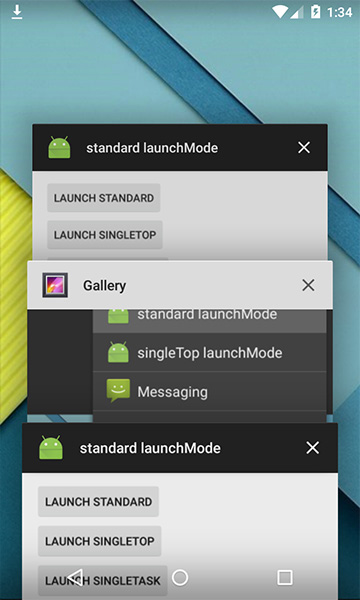 An example of this kind of activity is a Compose an Email Activity or a Social Network's status Posting activity. If you think about an activity that can work separately to serve an separate Intent, think about standard one.
singleTop
The next launch which appears when you hit control+space is singleTop,

It acts almost same as standard one which means that singleTop Activity instance could be created as many as we want. Only difference is if there already is an Activity instance with same type at the top of stack in the caller task, There would not be any new activity created, instead an intent will be sent an existing activity instance through onNewIntent(); Method
<activity> tag inside AndroidManifest.xml Manifest file list:
<activity android:name=".SplashScreen"
          android:configChanges="orientation|keyboardHidden|screenSize"
          android:label="@string/app_name"
          android:launchMode="standard"
          android:screenOrientation="portrait"
          android:theme="@android:style/Theme.Light.NoTitleBar.Fullscreen" >
    <intent-filter>
        <action android:name="android.intent.action.MAIN" />
        <category android:name="android.intent.category.LAUNCHER" />
    </intent-filter>
</activity>
There are 4 types of launch modes. Let c one by one.
An example of this kind of Activity is a Compose Email Activity or a Social Network's Status Posting Activity. If you think about an Activity that can work separately to serve an separate Intent, think about standard one.
standard
This is the default mode.
The behaviour of the activity set to this mode is a new activity will always be created to work separately with each intent sent.
An example of this kind of activity is a Compose an Email Activity or a Social Network's status Posting activity. If you think about an activity that can work separately to serve an separate Intent, think about standard one.singleTop
The next launch which appears when you hit control+space is singleTop,

It acts almost same as standard one which means that singleTop Activity instance could be created as many as we want. Only difference is if there already is an Activity instance with same type at the top of stack in the caller task, There would not be any new activity created, instead an intent will be sent an existing activity instance through onNewIntent(); Method


